


Your computer’s Recycle Bin is a key part of keeping your digital space tidy. It holds files you’ve deleted, giving you a chance to recover them if needed. It’s vital to know how to use it well to keep your digital area organised.
Many people don’t realise how important this tool is until they accidentally delete something. It gives you time to change your mind, just like how recycling paper needs to be done right. Knowing the right steps and avoiding common mistakes can prevent losing important data.
This guide will show you how to handle deleted items the right way. You’ll learn to use this feature to your advantage and avoid mistakes that could delete files for good. By mastering these skills, you’ll keep your digital world in order.
Understanding Your Computer’s Recycle Bin
Many people use the Recycle Bin every day without knowing its true purpose. It’s not just for deleting files right away. It’s a safety net that helps keep your data safe and your system running smoothly.
What the Recycle Bin Actually Does
The Recycle Bin is where files go when you delete them. It doesn’t delete them immediately. Instead, it moves them to the Bin, keeping their data safe.
This means you can get your files back if you change your mind. The system just marks the space as free for new data. This is why you can often recover deleted files.
How File Deletion and Recovery Works
When you delete files, they’re just moved to the Recycle Bin. The actual data stays on your hard drive until it’s overwritten. This makes it easy to get your files back when you need to.
Recovery is possible because the system keeps track of deleted files. It only erases them when you empty the Bin yourself. This gives you a chance to recover your files.
| Action | What Happens | Recovery Possibility |
|---|---|---|
| Standard Delete | File moves to Recycle Bin | Full recovery available |
| Empty Recycle Bin | Space marked as available | Possible with special tools |
| Disk Overwrite | New data replaces old | Permanent deletion |
The Importance of Proper Recycle Bin Management
Managing your Recycle Bin well stops your disk from getting full of deleted files. Regular cleaning keeps the system working right when you need it. It’s a key part of using your computer wisely.
Good management means keeping an eye on how much space you have and cleaning up regularly. It helps protect your data and keeps your computer running smoothly. These skills are very useful when you have limited space.
Knowing how the Recycle Bin works helps you manage your files better. It turns the Recycle Bin from a mystery into a useful tool for keeping your files in order.
Essential Recycle Bin Configuration Settings
Setting up your Recycle Bin right makes it more than just a place for trash. It turns into a key tool for managing your files. By tweaking these settings, you protect your deleted files and keep your system running smoothly.
Customising Storage Allocation Preferences
Windows lets you choose how much space each drive’s Recycle Bin gets. Just right-click the Recycle Bin icon and pick Properties. You’ll see a list of drives and how much space they’re using.
Think about how you use your files when setting these preferences. If you often change files, give your Recycle Bin more space. System drives usually need more room than storage drives.

Setting Appropriate Size Limits
Finding the right size limit for your Recycle Bin is key. It stops files from being deleted too soon and saves disk space. Most people find the default 5-10% of each drive’s capacity just right.
If you deal with lots of files, here’s what to consider:
| User Type | Recommended Allocation | Rationale |
|---|---|---|
| Casual Users | 5% of drive space | Adequate for occasional deletions |
| Power Users | 10-15% of drive space | Handles frequent large file deletions |
| Content Creators | 15-20% of drive space | Accommodates massive project files |
Going over these limits means older files get deleted for good when you empty the Recycle Bin.
Configuring Delete Confirmation Dialogues
The delete confirmation dialogue is a safety feature. It shows up when you try to delete files or empty the Recycle Bin. It helps avoid losing data by mistake.
To turn this on, go to Recycle Bin Properties and check “Display delete confirmation dialog”. It might slow you down a bit, but it’s worth it to avoid losing important files.
For regular users, this might seem like extra work. But for shared computers or places where files are often managed, it’s a must. It’s all about finding the right balance between ease and safety.
Proper File Deletion Techniques: The Dos
Using the right ways to delete files can make your computer run better. It helps get rid of digital mess and makes work flow smoother. Here are key steps for deleting files well.
Using Standard Deletion Methods Correctly
Right-clicking a file and choosing “Delete” is a common method. It sends the file to the Recycle Bin, not deleting it for good. Always check the file’s contents before deleting to avoid losing important stuff.
Dragging files to the Recycle Bin icon is another good way. It keeps you aware of what you’re deleting. Both methods let you easily get back deleted files if needed.
Keyboard Shortcuts for Efficient Deletion
Keyboard shortcuts make deleting files faster. The Delete key sends files to the Recycle Bin. Shift + Delete deletes files permanently without going through the bin.
Be careful with Shift + Delete, as it can’t be undone. Use it only for files you’re sure you won’t need again. Stick to regular deletion methods to avoid losing data by mistake.
Organising Files Before Deletion
Make a habit of checking and sorting files before deleting them. Regularly clean out your download folder and temporary files area. This stops files from piling up and makes deleting easier.
Sort files into categories like type, date, or project. This way, you’re less likely to delete something important. It also means you won’t need to restore files as often.
Set up a regular cleaning schedule, like weekly or monthly. Keeping your digital space tidy makes your computer work better and saves storage space.
File Recovery Best Practices
Deleting important files by accident can be stressful. But, knowing how to recover them makes it easier. This section will show you how to get your files back from the Recycle Bin.
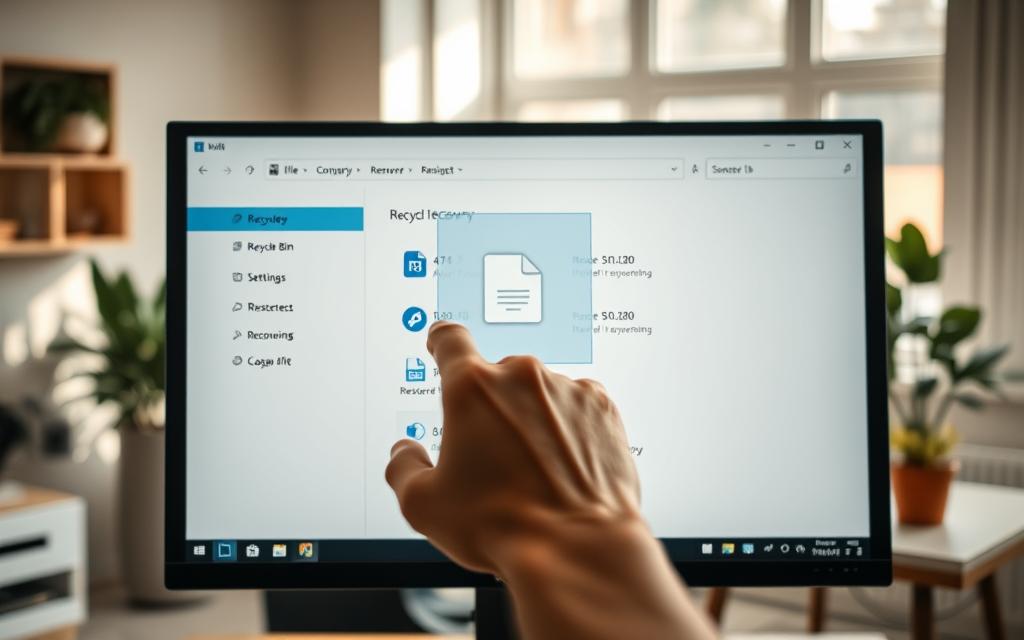
Step-by-Step Restoration Process
Here’s a simple way to get your deleted files back:
- Double-click the Recycle Bin icon on your desktop
- Browse through the deleted items to find your file
- Right-click on the file and select ‘Restore’
- The file will go back to where it was before
You can also use the search bar in the Recycle Bin to find files quickly. This is helpful when you have many deleted items.
Recovering Multiple Items Efficiently
Restoring many files at once is easy with Windows:
- Press Ctrl+A to select all items in the Recycle Bin
- Hold Ctrl while clicking to pick multiple files
- Use Shift+Click to pick a group of files
After picking your files, right-click any one and choose ‘Restore’. This way, all files go back where they belong at once. It’s faster than doing each file separately.
Verifying Recovered File Integrity
Always check if files work right after you get them back. This is very important for files lost due to system problems or app crashes.
Here’s a checklist to follow:
| File Type | Verification Method | Common Issues |
|---|---|---|
| Documents | Open and check formatting | Corrupted formatting |
| Images | Preview full image | Partial loading |
| Applications | Run executable file | Missing dependencies |
| Archives | Extract and check contents | Corruption errors |
“Always test recovered files immediately after restoration. Early detection of corruption prevents data loss complications.”
If a file doesn’t work right after you get it back, check your Recycle Bin settings in Windows. Sometimes, not enough space can mess up file recovery.
For really important files, make backup copies right after you get them back. This extra step helps protect against future problems.
Common Recycle Bin Mistakes: The Don’ts
The Recycle Bin is a safety net for accidental deletions. But, many users make mistakes that harm its function. Knowing what not to do is as important as knowing how to delete files properly.
Avoiding Accidental Permanent Deletion
One big mistake is skipping the Recycle Bin. When you press Shift + Delete, files are gone for good. This should only happen when you’re sure you won’t need the data again.
Windows lets you delete files twice for a reason. It gives you a chance to change your mind. Always use the regular delete unless you’re sure you don’t need the files anymore. This simple rule can prevent big data losses.
Not Ignoring Storage Capacity Warnings
Many ignore Windows’ warnings about the Recycle Bin’s size. This can cause data loss. When the bin is full, older files are deleted to make room for new ones.
Take these warnings seriously. If your Recycle Bin is full and you’re warned about deleting older items, act fast. Either increase the bin’s size or clean out unnecessary files before deleting more.
Preventing Unauthorised Access to Deleted Files
Many think deleted files are gone for good. But, files in the Recycle Bin can be seen and recovered by all users on the same computer until it’s emptied.
This is a big privacy risk, even on shared devices. Always empty your Recycle Bin after deleting sensitive files. For very private data, use secure deletion tools that erase files completely.
Managing Recycle Bin Storage Space Effectively
Managing your Recycle Bin’s storage space helps avoid system slowdowns. It also makes sure you can recover files when needed. By setting the right storage space, you balance safety and performance.
Monitoring and Adjusting Capacity Limits
Windows sets a default storage space for the Recycle Bin based on your hard drive size. You can change these settings by right-clicking the Recycle Bin icon and choosing Properties. The properties window lets you see each drive’s allocation and adjust the maximum storage size.
Most users find 5-10% of total drive space enough for protection without wasting space. If you have limited storage, you might need less space. But if you handle big files often, you might need more. Regular checks help keep your settings right for your needs.
The table below shows recommended storage allocations for different drive sizes:
| Drive Size | Minimum Allocation | Recommended Allocation | Maximum Safe Allocation |
|---|---|---|---|
| 256GB | 5GB | 12-25GB | 40GB |
| 512GB | 10GB | 25-50GB | 80GB |
| 1TB | 20GB | 50-100GB | 150GB |
| 2TB | 40GB | 100-200GB | 300GB |
Regular Maintenance and Cleanup Schedules
Having a regular maintenance routine keeps your Recycle Bin working well. Weekly checks help find files to delete permanently while keeping important ones safe. Set reminders to empty the bin regularly, more often if you work with big files.
Consider a two-step cleanup process. First, look for files you didn’t mean to delete. Then, delete files you don’t need. This way, you avoid losing data and keep storage efficient. Many find monthly empties with weekly checks work best.
In business settings, create formal policies for data retention and cleanup. Consistent practices across the organisation prevent storage problems and ensure data management rules are followed.
Understanding When Files Bypass the Recycle Bin
Some deletion methods skip the Recycle Bin and delete files immediately. Files deleted from removable drives or using Shift+Delete or Command Prompt are deleted right away. Network locations and cloud storage have their own recycling systems, not your local Recycle Bin.
Knowing these exceptions helps avoid losing data by mistake. When you need to delete files securely, these methods are useful. Always make sure you’re using the right method for your needs.
Security Considerations for Deleted Files
When dealing with sensitive information, standard deletion methods leave significant security gaps that demand attention. Proper data management extends beyond simple file organisation. It requires understanding how deleted information can remain accessible through various recovery methods.
Protecting Sensitive Information
Standard deletion through the Recycle Bin does not actually remove your files from the storage device. Instead, it merely marks the space as available for future use. Until new data overwrites this space, recovery remains possible using specialised software tools.
This creates substantial risks for confidential documents, financial records, or personal information. Organisations handling sensitive data must implement additional security measures. These measures prevent unauthorised access to supposedly deleted files.

Secure Deletion Methods for Confidential Data
For truly confidential information, consider using secure deletion software that overwrites files multiple times. These tools employ various algorithms that make recovery virtually impossible, even with advanced forensic equipment.
Several effective methods exist for secure file eradication:
- DoD 5220.22-M standard: Overwrites data three times with specific patterns
- Gutmann method: Uses 35 passes for maximum security
- One-pass overwrite: Efficient balance between security and speed
Many professional data management suites include built-in secure deletion options. Third-party applications also provide enhanced functionality for permanent file removal.
| Deletion Method | Security Level | Time Required | Best For |
|---|---|---|---|
| Standard Recycle Bin | Low | Instant | Non-sensitive files |
| Shift + Delete | Low | Instant | Quick removal without bin |
| One-pass Overwrite | High | Medium | General confidential data |
| Multi-pass Overwrite | Maximum | Long | Highly sensitive information |
Understanding Recovery Limitations
Both standard and secure deletion methods have inherent limitations in data recovery scenarios. Physical damage to storage media can prevent any recovery attempt, regardless of deletion method used.
Time plays a critical role in recovery success. The longer deleted data remains on a drive without overwriting, the higher the recovery chances become. This timeframe varies based on storage capacity and usage patterns.
Modern solid-state drives present additional complications due to wear-leveling technology. This feature distributes data across memory cells, potentially complicating both recovery and secure deletion processes.
Understanding these limitations helps organisations develop data management policies. These policies balance accessibility needs with security requirements for different types of information.
Troubleshooting Common Recycle Bin Issues
The Recycle Bin can sometimes cause technical problems. These issues can range from small annoyances to big problems that might lose your data. Knowing how to fix these common problems helps keep your system running smoothly and stops important files from being lost forever.
Addressing Corrupted Recycle Bin Problems
A corrupted Recycle Bin can show up as error messages, missing files, or trouble emptying or restoring items. This usually happens because of file system errors or sudden system shutdowns. To fix this, you can rebuild the Recycle Bin folder using Command Prompt.
Here’s how to repair a corrupted Recycle Bin:
- Open Command Prompt as administrator
- Type: rd /s /q C:\$Recycle.bin
- Press Enter and restart your computer
The system will make a new Recycle Bin folder when it starts up again. This fixes the problem and keeps your deletion settings the same.

Restoring Missing Recycle Bin Icons
If your Recycle Bin icon is gone from the desktop, it’s often because of accidental settings changes. Windows makes it easy to get it back without needing to be a tech expert.
To get the Recycle Bin back on your desktop:
- Right-click on an empty desktop area
- Select “Personalise” from the context menu
- Choose “Themes” followed by “Desktop icon settings”
- Check the Recycle Bin box and apply changes
This simple step will quickly bring back your deleted files management interface.
Fixing Empty Bin and Restoration Errors
One of the most frustrating issues is when the Recycle Bin seems empty but has files, or when you can’t restore them. These problems often come from permission issues or file system errors. If not fixed right, they can lead to permanent deletion of your files.
Here are some steps to troubleshoot these problems:
- Check folder permissions through Properties > Security tab
- Run System File Checker (sfc /scannow) to repair system files
- Use disk cleanup tools to address file system errors
- Reboot your system to clear temporary glitches
If these issues keep happening, you might need to use special recovery software. This is to get back files that seem lost before they’re deleted forever.
Remember, regular system checks and avoiding sudden shutdowns help avoid these problems. Always focus on keeping your data safe when fixing issues to avoid losing important files.
Advanced Recycle Bin Management Techniques
For those who want more control over their files, there are advanced methods. These go beyond what you can do with the basic Recycle Bin. They offer precision, automation, and more than the standard features.
Using Command Line Operations
Command line operations give you direct control over the Recycle Bin. You can use the Windows Command Prompt to do things not available in menus.
For example, you can empty the Recycle Bin with a command like rd /s /q C:\$Recycle.Bin. This deletes files without asking for confirmation.
These commands are great for system administrators. They can make batch files to manage the Recycle Bin on many computers at once.
Automating Cleanup and Maintenance Tasks
The Windows Task Scheduler is powerful for automating Recycle Bin tasks. You can set up tasks to empty the bin at set times.
Automating cleanup keeps your system running smoothly. It also frees up space on your disk. This stops the Recycle Bin from taking up too much room.
You can schedule tasks for when you’re not using your computer. The system can also send you a message after it’s done cleaning up.

Third-Party Tools for Enhanced Functionality
There are many tools that add more to what the Recycle Bin can do. These tools help with recovering, organising, and managing files.
Some tools let you have different bins for different types of files. They also have powerful search and filter options for deleted files.
Tools like these let you see what’s in the bin before you restore it. They also have extra security features for deleting files.
| Tool Name | Primary Feature | System Requirements | Price Range |
|---|---|---|---|
| BinManager Pro | Multiple category bins | Windows 10/11 | $29.99 |
| FileRecovery Suite | Advanced preview options | Windows 8/10/11 | Free – $49.99 |
| SecureDelete Master | Military-grade deletion | Windows 10/11 | $39.99 |
| AutoClean Scheduler | Smart automation | Windows 7/8/10/11 | Free |
Using these advanced methods with basic keyboard shortcuts makes managing files better. Power users can work more efficiently and keep their data organised.
Always check the reputation of third-party tools before you install them. Make sure they are from trusted developers and get updates regularly.
Organisational Recycle Bin Policies
In corporate settings, the Recycle Bin is more than just a desktop feature. It’s a key part of managing data. Companies need to have clear policies to keep systems running smoothly, securely, and in line with the law. These rules help everyone follow the same practices.
Establishing Corporate Data Management Guidelines
Good corporate policies start with standard Recycle Bin settings. IT teams should set the same size limits and emptying times for all. This stops servers from getting too full and keeps systems fast.
Important things to think about include:
- Differentiating between user workstations and shared servers
- Aligning deletion policies with data retention requirements
- Implementing tiered storage approaches for various file types
Microsoft offers great advice on managing the Recycle Bin of a SharePoint. Many companies find it very helpful. Remember, the Recycle Bin is just a temporary spot, not a full backup or restore solution.
Employee Training and Best Practices
For policies to work, staff need to know and follow them. Training sessions help employees understand the difference between deleting and removing files for good. It’s also important to teach the difference between digital and physical recycling.
Training should cover:
- Proper file deletion protocols
- Recovery procedures for accidentally deleted items
- Security implications of deleted sensitive data
Just like finding places to recycle plastic, companies should provide clear guides for digital recycling. This helps employees see the importance of proper disposal in both digital and physical worlds.
Compliance and Audit Considerations
Recycle Bin policies must meet legal and regulatory standards. Different industries have their own rules for data retention. Regular audits check if policies are followed and find any gaps.
Companies should keep detailed records of their Recycle Bin policies. This includes:
| Policy Aspect | Compliance Consideration | Audit Frequency |
|---|---|---|
| Retention Period | Matches legal requirements | Quarterly |
| Storage Limits | Prevents data hoarding | Monthly |
| Access Controls | Protects sensitive information | Bi-annually |
| Emptying Schedule | Ensures timely disposal | Quarterly |
These policies work with strong system restore and backup plans. They offer a strong defence against data loss. Proper policies reduce legal risks and keep operations running smoothly.
Environmental Impact of Digital File Management
Many computer users don’t think about how their digital habits affect our planet. Every file we keep uses energy and resources. Good file management is not just about keeping things tidy; it also helps the environment.
Reducing Digital Waste Through Proper Management
Digital waste is files we don’t need that take up space. These files use more energy over time. Keeping your Recycle Bin clean helps reduce this clutter.
Here are some ways to cut down on digital waste:
- Schedule monthly checks on your files
- Get rid of duplicate and old files
- Make sure to empty the Recycle Bin
- Organise files in clear folders
These steps not only save space but also cut down on energy use. Good data security practices also help avoid wasting digital space.
Energy Efficiency in File Storage Practices
Data centres and storage devices use a lot of electricity. The more data we store, the more energy it takes to keep it running. Smart file management can lower this energy use.
Here are some ways to save energy:
- Move old files to archives
- Choose cloud storage that uses green energy
- Compress big files and folders
- Upgrade to energy-saving storage devices
These steps help reduce carbon emissions and keep systems running well. The link between keeping digital files organised and saving energy is clear, even in big server farms.
Sustainable Computing Approaches
Sustainable computing means making eco-friendly tech choices. This includes how we use technology every day. Managing your Recycle Bin is a big part of this.
Key parts of sustainable computing are:
- Make devices last longer with smart storage
- Reduce e-waste by using storage wisely
- Support companies that care about the environment
- Teach others about digital storage’s impact
These actions show how our choices can help the planet. The mix of data security and green living makes a strong case for careful file management.
By making these changes, we can make our computers work better and help the planet. Even small changes in how we use digital files can make a big difference over time.
Conclusion
Managing the Recycle Bin is key to keeping your digital files in order. We’ve looked at how to avoid losing data by mistake and keep your system running smoothly. The Recycle Bin is your main defence against deleting files by accident.
Checking deleted files regularly and setting storage limits are important. These steps turn the Recycle Bin into a powerful tool for protecting your data. Not paying attention to storage warnings or using permanent delete options wrongly can cause permanent data loss.
By making these Recycle Bin management tips part of your computer care routine, you’ll have a safer and more efficient digital space. Good file deletion and recovery practices boost your system’s performance and security. This way, you avoid digital mess and keep your important files safe.
Using these strategies will make your digital organisation better and protect you from common data problems. Regularly applying these tips is smart computer care that boosts your productivity and peace of mind.
FAQ
What is the Recycle Bin and how does it work?
The Recycle Bin is a safety feature in Windows. It acts as a temporary holding area for files you delete. Instead of erasing data right away, it moves the file’s pointer to the Bin. This lets you recover items if needed.
This helps prevent accidental data loss. It’s a key part of managing digital files.
How can I customise the storage size of my Recycle Bin?
To change the Recycle Bin’s storage size, right-click the Bin icon. Then, select ‘Properties’ and set a maximum size for each drive. Choose a size based on your file usage and deletion habits.
This balances safety with efficient disk space management.
What is the safest way to delete files to avoid permanent loss?
The safest way is to use standard deletion options. Right-click and select ‘Delete’ or drag files to the Recycle Bin. Avoid ‘Shift + Delete’ unless you’re sure you won’t need the files again.
This method bypasses the Bin and deletes files immediately.
How do I restore files from the Recycle Bin?
Open the Recycle Bin and select the file(s) you want to recover. Right-click and choose ‘Restore’. For multiple items, use ‘Ctrl + A’ to select all or hold ‘Ctrl’ while clicking specific files.
Always check restored files to make sure they work correctly, even if deleted by system errors.
What should I do if my Recycle Bin is corrupted or missing?
If the Recycle Bin is corrupted, use Command Prompt with specific commands to rebuild it. If the icon is missing, restore it through desktop personalisation settings. For ongoing issues, check for system errors or permission conflicts.
Are deleted files in the Recycle Bin accessible to others?
Yes, files in the Recycle Bin are accessible to other user profiles on the same computer until emptied. For sensitive information, use secure deletion methods or regularly empty the Bin to keep your data private.
How does the Recycle Bin relate to energy efficiency and sustainability?
Efficient Recycle Bin management, like regular deletion and emptying, reduces data storage. This lowers energy use for data processing and storage. It helps make computing more sustainable.
Can I use third-party tools to enhance Recycle Bin functionality?
Yes, many third-party utilities offer extra features. These include enhanced file previews, multiple bins for different file types, and better search options. Tools like CCleaner or Eraser can give you more control over deletion and recovery.
What are the risks of ignoring Recycle Bin storage warnings?
Ignoring warnings that the Recycle Bin is full can lead to permanent data loss. Older files will be deleted to make space for new ones. It’s important to regularly monitor and manage the Bin’s capacity.
How can organisations implement effective Recycle Bin policies?
Organisations should set clear guidelines on Recycle Bin size limits, auto-empty schedules, and employee training. These policies help save storage, prevent data loss, and meet data retention and security standards.


 By
By



 By
By